Conquering the global tool in .NET Core
As you may already know, .NET Core allows us to create and run applications on a multitude of platforms. It can be difficult to distribute them, especially console applications. If we look at what exists in the open source world, and especially under NodeJS, we can download and install an application quite easily. Then, it is automatically accessible from any folder on the PC. Here is an example with node:
$ npm install -g myLibrary
$ myLibrary
Starting with the .NET Core SDK 2.1, available since May 30, 2018, Microsoft offers us a similar experience:
$ dotnet install tool -g myLibrary
$ myLibrary
With the first command line, the application is downloaded and installed in a common space. Once the application is installed, the second command lets you run the console application from anywhere, myLibrary in this example.
Hey Jamy, but how does it work?
(Jamy is a reference to a French documentary series that popularized science in the 2000s)
This feature lets us expose .NET Core applications, and more specifically netcoreapp 2.1 applications of the executable type. The result is encapsulated in a NuGet package and can be distributed on a public server (such as nuget.org), in a private space (Visual Studio Online with the Packages extension, myget, …) or even in a local folder or a remote directory. To be able to use this example, I recommend that you create a directory to contain your generated packages. Then choose whether you want to keep the packages in the workspace (the folder of your solution/project) or more globally on your computer. Here’s how to stay in the workspace:
- Create a folder at the root of your workspace,
nupkgsin my example - Create a configuration file: dotnet new nugetconfig
- In this configuration file, add the line that defines your directory:
<?xml version="1.0" encoding="utf-8"?>
<configuration>
 <packageSources>
    <add key="local-packages" value="./nupkgs" />
 </packageSources>
</configuration>
Don’t panic: It’s not complicated!

Now that our environment is in place, let’s go in search of results: let’s create our console application:
$ dotnet new console -o aclerbois.sayhello.programmez
This command creates a new folder named aclerbois.sayhello.programz and adds a .NET Core console application project. A program.cs and an aclerbois.sayhello.programz.csproj file have been added.
Let’s start by modifying the program.cs file:
static void Main(string[] args)
{
    Console.WriteLine("Salut les lecteurs du magazine Programmez!");
}
Mark the application as a tool
In the configuration of our project, we will define the application as a tool. Go to aclerbois.sayhello.programz.csproj and configure the project as follows:
<Project Sdk="Microsoft.NET.Sdk">

  <PropertyGroup>
    <OutputType>Exe</OutputType>
    <TargetFramework>netcoreapp2.1</TargetFramework>
    <PackAsTool>true</PackAsTool>
    <ToolCommandName>helloprogrammez</ToolCommandName>
    <PackageOutputPath>../nupkgs</PackageOutputPath>
    <Version>1.0.0</Version>
  </PropertyGroup>

</Project>
You may be familiar with the OutputType, Version and TargetFramework elements, but you may wonder what these new elements are:
PackAsTool: This tells the dotnet pack command to package our application correctly so that it can be installed as a tool.ToolCommand: This allows you to choose the command line executable name for the application. With this parameter you can write helloprogram instead of aclerbois.sayhello.programz.
Note: if you want to use the word dotnet in front of the application, you can use the dotnet-helloprogram value. The command to call the console will be:
$ dotnet helloprogrammez
PackageOutputPath: This tells the dotnet pack command where to place the .nupkg result. This property is not new and already exists in the published tooling. For our example, it must point to the path we configured in the nuget.config file.
And now…?
We are ready to compile and package our application. The dotnet pack command will compile the binaries if it is not already done and package them:
$ dotnet pack -c Release
...
Successfully created package
'C:\repos\clitools\nupkgs\aclerbois.sayhello.programmez.1.0.0.nupkg'.
We only have to install the generated package now:
$ dotnet tool install -g aclerbois.sayhello.programmez

If there were no additional instructions, you can type the following command to invoke the tool: helloprogrammez
Tool 'aclerbois.sayhello.programmez' (version '1.0.0') was successfully installed.
Note: if you are on a “preview” version, you can ignore the warnings generated by the compiler.
To play the game, open a new command prompt and type the magic word:

Uninstall an application
It is very easy to uninstall a CLI application. You must use the dotnet tool uninstall [package name] command.
In our case:
dotnet tool uninstall -g aclerbois.sayhello.programmez
Details make perfection, and perfection is not a detail, Leonardo da Vinci.
Let’s take a look at the dotnet tool install command.
You are allowed to specify the version of the package you want to install using the CLI --version argument.
dotnet tool install -g aclerbois.sayhello.programmez --version 1.1.0
You can also install the application only in the context of your working directory. To do this, do not specify the -g (or --global) parameter:
dotnet tool install aclerbois.sayhello.programmez
If your application packages are in a remote directory, use the --source argument with the location of your packages.
Welcome home
Our helloprogrammez tool is installed in the .dotnet\tools folder in the user directory:
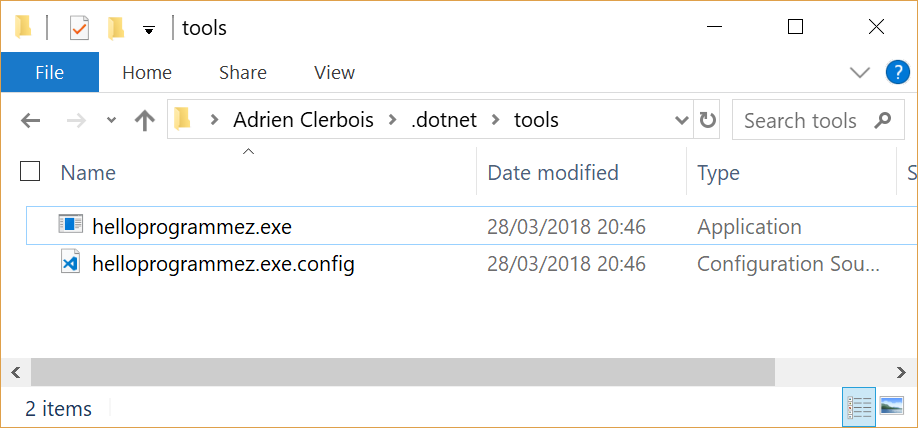
The install command generates an .exe file as a wrapper on Windows and shell scripts on MacOS / Linux. On Windows, it is currently a .NET Framework executable, but there are plans to replace it with a native executable in a future version. The sources of my example can be found at: https://github.com/aclerbois/sayhello.programmez
Sky’s the limit
(Well except for Elon Musk)
Today, the number of resources available in npm’s public directory is about 600,000 packages. The diversity of features offered by the community is impressive. The arrival of this new SDK contribution and the possibilities offered by .NET Core are limitless. I hope that the number of NuGet.org packages will increase exponentially, with lots of new tools that will allow us to speed up the way we work.