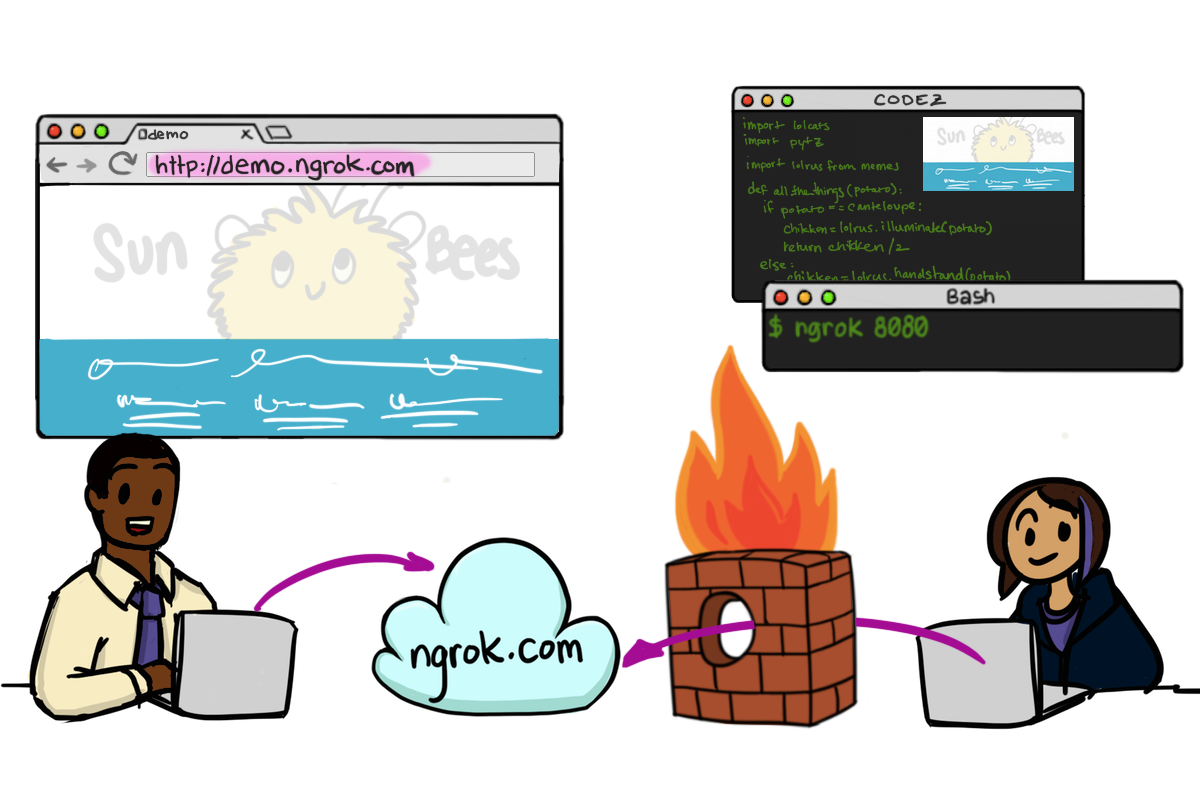
ngrok exposes local servers behind NATs and firewalls to the public internet over secure tunnels.
Start by downloading the exe file from this location: https://ngrok.com/download
Extract the application, open a console and go to the directory where ngrok was extracted.
Launch the ngrok.exe application and add the port to expose:
ngrok http 8081In addition, if you use IIS Express with Visual Studio, you need some more configuration to reach your application.
- Edit the file applicationhost.config (in the folder: [VSPROJECTFOLDER]/.vs/config/ ),
- Find the line containing “:8081:localhost” and remove “:localhost” to keep only “:8081”.
-
Restart your Visual Studio.
- Call ngrok with:
ngrok http 8081 -host-header="localhost:8081"Once ngrok launches, you get access to your tunnel through a URL, i.e.: http://1cac6d41.ngrok.io